
Audio Setup
Introduction
ADR Master has sophisticated audio features that aid in everyday workflow.
Audio files can be imported directly onto timeline audio tracks. Most common modern audio file types are supported.
Each audio track can be routed to any output destination on the hardware device.
When a video file is dropped onto the timeline, ADR Master additionally creates audio tracks and regions for every audio track the movie contains.
The Audio Settings Window
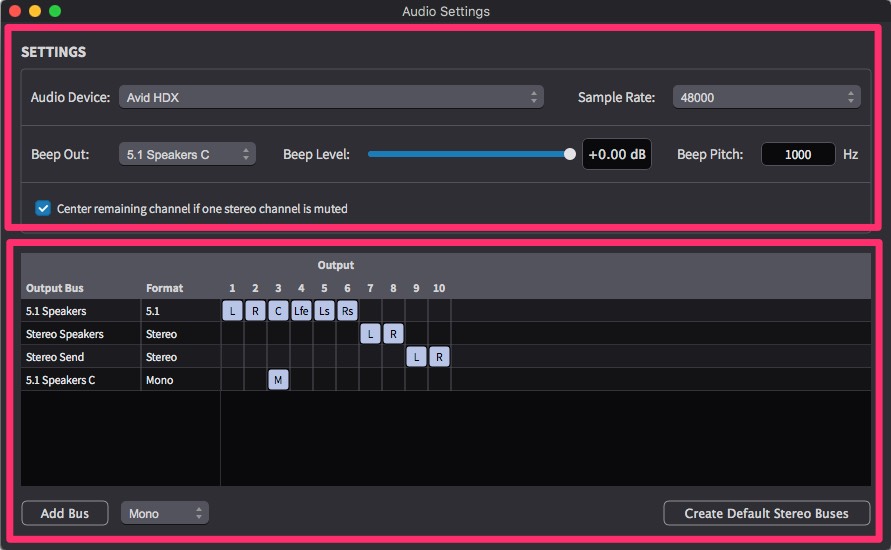
The Audio Settings window contains most audio related settings and the audio hardware output routing matrix. It can be displayed by going to the Window menu and selecting Audio Settings or by using the shortcut Shift & A.
The window is separated into two sections: the Settings section at the top, and the routing section at the bottom.
 {width=50%}
Note: The settings chosen here are applied globally to ADR Master and are independent of specific Project or Timeline settings. This allows for an integrated generic audio output routing setup in the studio, for example to a mixing console - that is consistent across every project. This way, the beeps can always be on one channel on the mixing console, & the same for Guide Mix, the Dx, Fx, & Mx Stems.
Settings Section
Output device - ADR Master will scan the system for all available audio devices when it starts. These devices will be listed here. Select the one to be used by default for audio output. ADR Master will store and restore all the individual output busses and their routing using the matrix below on a per-device basis.
Sample Rate - Selects the sample rate for ADR Master to use. If a DAW is running on the same computer, make sure that this is set to the same sample rate as the DAW. If the computer is only running ADR Master, it may be better to match the audio sample rate of the video file, typically 48kHz is the best starting setting to use.
Beep Out - Selects the output for the beeps during streamer and ADR Cue events.
Beep Level - Selects the output level of the audio beeps. A Beep On/Off toggle switch is found in the application's preferences in Overlays → Streamer → Play Audio Beeps and Overlays → ADR Cue → Play Audio Beeps during Preroll.
Beep Pitch - Selects the preferred pitch of the audio beeps.
Center remaining channel if one stereo channel is muted - If one channel of a stereo file is muted by right-clicking the mute button, ADR Master will center the remaining channel if this checkbox is ticked.
Routing Section
At the bottom of the window, ADR Master displays a routing matrix which allows output busses to be defined and their individual output channels routed to physical output channels of the audio interface.
The greater the number of audio outputs available on the hardware device, the bigger this matrix window will appear.
To create a new channel, click the Add Bus button at the bottom. Use the popup menu next to the button to select which kind of bus to create. Options range from Mono up to 7.1.
If stereo output pairs are sufficient, ADR Master can create those by clicking the Create Default Stereo Busses button on the bottom right.
When a new bus is created, its name can be edited by double-clicking the row header in the list.
To delete an output bus, select the row by clicking the row header on the left and hit backspace.
Routing of the individual channels to physical outputs of the device is done by simply dragging the channel icon around.
Every output bus created in the routing matrix will be selectable as an output destination for audio tracks in the track view of the main window.
Note: If the audio track's channel count doesn't match the output bus' channel count, ADR Master will up-mix or down-mix the audio content automatically.
5.1 Playback with Stereo Monitoring
When working with 5.1 audio content but monitoring through stereo outputs, ADR Master will automatically down-mix the 5.1 channels to stereo during playback.
For 5.1 audio playback, ADR Master assumes SMPTE channel order (Left, Right, Center, LFE, Left Surround, Right Surround). This order is only relevant when using the automatic up-mix or down-mix functionality.
ADR Master will always display audio channels in the order they are stored in the file. However, if the playback doesn't sound correct after automatic down-mixing, the speaker output order can be adjusted in the Audio Settings routing matrix by moving the speaker channels around until the playback is correct.